
DSC Not Associated With the MCA Portal? How to Fix the Problem Before Company Registration
23 Nov 2026 - Licenses
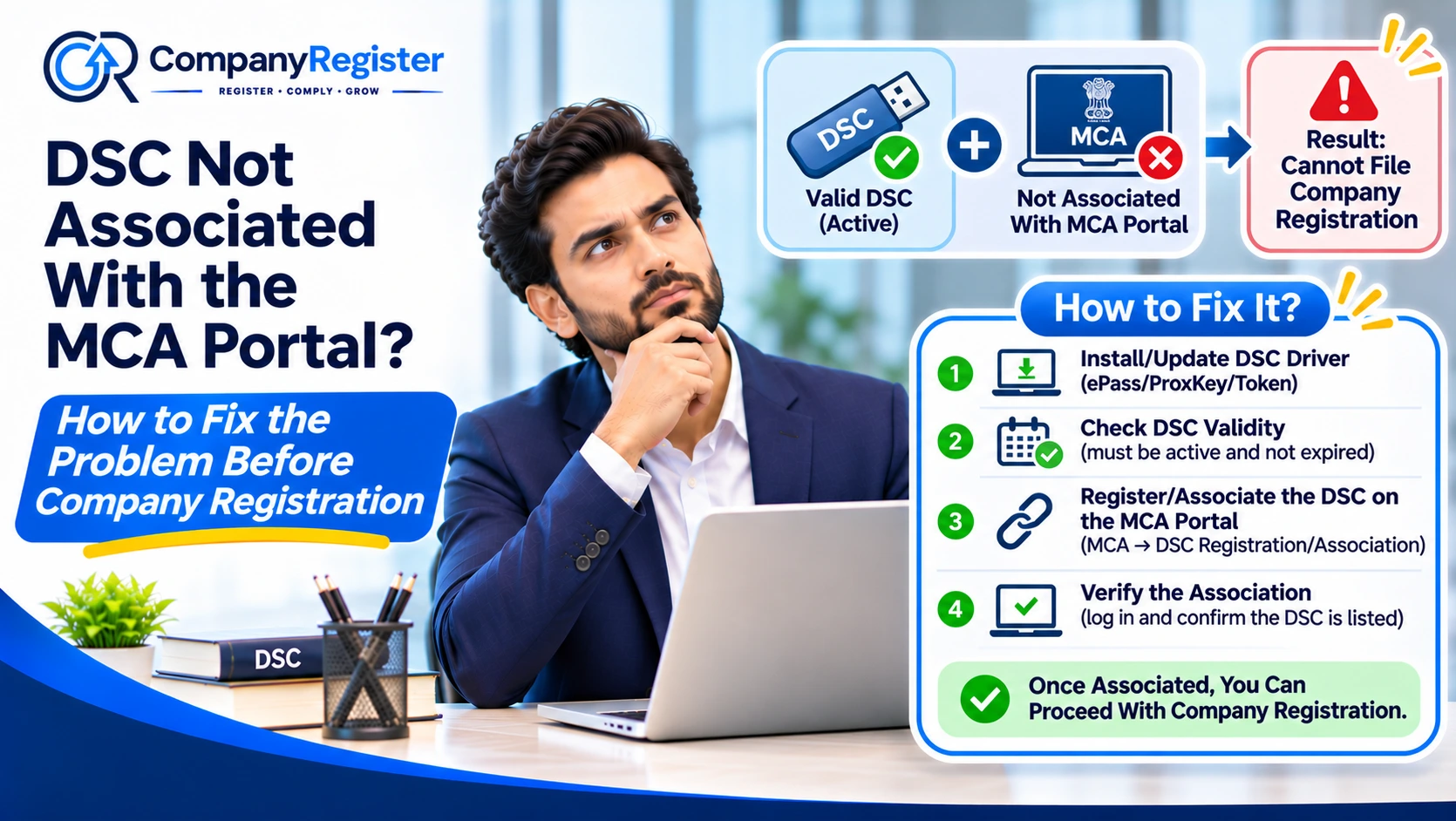
If your DSC is not associated with the MCA portal, use the signatory’s MCA account to complete the available DSC association procedure, then retry the signature. First make sure the certificate is valid and accessible on the signing computer: a token or signing-utility problem needs a different fix from an account association problem.
For a first-time founder, the confusing part is that obtaining a Digital Signature Certificate (DSC), associating it with an MCA user profile and signing an incorporation form are separate events. This guide takes you from identifying the failed stage to preparing for SPICe+ on MCA21, without assuming that a single error message explains the whole problem.
1. DSC not associated MCA portal: identify the stage of failure
1.1 Read the message in context
Record the exact message and where it appears. A message while opening a certificate list calls for a different investigation from one shown after you select a certificate and submit an association request. Similarly, a signature rejected in an incorporation form is not necessarily evidence that the certificate itself is defective.
Note whether you were signing in, associating the certificate, signing a form or submitting a signed filing. If another person is helping with incorporation, tell them which person was meant to sign and which account was in use. Those two details are often more useful than a general report that the digital signature is not registered with MCA.
1.2 Separate the four working parts
Part | What it does | Question to ask |
|---|---|---|
Certificate and token | Provide the signatory’s digital signing credential. | Can the token software see the intended certificate? |
Local signing software | Helps the computer communicate with the signing process. | Does the software requested by MCA respond? |
MCA account and association | Provide the portal context in which the signatory is identified. | Was the association completed in the appropriate account? |
Incorporation form | Places the signature in the required filing context. | Is the intended person signing the intended field? |
This separation can save an unnecessary purchase. Replacing a certificate will not, by itself, resolve every account or form issue. Equally, changing a portal profile will not repair a token that the computer cannot read.
2. Who can prepare for DSC association?
2.1 Identify the person and capacity
Start with the individual who will apply the signature, not just the person managing the company registration project. A proposed director, subscriber or professional may appear in a different capacity in the incorporation documents. The applicable form and signing instructions determine who signs each field; do not assume that one founder’s certificate covers every person involved.
Someone may be both a subscriber and a proposed director. Make a list of each distinct person and the capacity in which that person is expected to sign. This is a practical planning step: it helps you see whether you are missing a signatory before the filing is ready.
2.2 Check the account and certificate
The signatory needs access to the appropriate MCA21 user profile and a usable certificate belonging to that signatory. Look at the account category and role options presented on MCA before beginning association. In particular, if the portal directs you to a Business User profile for the action, use the relevant profile option rather than repeatedly attempting the same action from an unsuitable account.
A proposed director without an allotted Director Identification Number (DIN) should not invent one or borrow another person’s number to get past a field. The incorporation route can deal with the identification of proposed directors; use the role and inputs offered for the person’s actual circumstances. The exact account option for a proposed director without a DIN should be taken from MCA’s current instructions and the choices displayed in the portal.
Identify each person expected to sign and the capacity shown in the filing.
Use a valid certificate belonging to the intended signatory.
Make sure that signatory can access the relevant MCA account.
Review the account category and role that MCA offers for the intended action.
Keep the certificate holder available to authorise the signature personally.
3. What to have ready and why
The following is a preparation list, not a claim that every item must be uploaded for DSC association. Portal fields can differ by user role. Keep information accessible in a secure place and provide an item only when the relevant application or service asks for it.
Item | Purpose and useful format |
|---|---|
DSC and access to its token | The certificate is the credential to be selected for association and signing. Keep the token and its PIN with the certificate holder; the PIN is not an incorporation attachment. |
MCA account credentials | These give access to the signatory’s profile and the relevant portal action. Keep credentials private rather than placing them in a shared document. |
PAN details, where applicable | The Permanent Account Number may be relevant to the profile, certificate or form. Have the number and the name recorded against it available as text from the underlying record. |
DIN, if already allotted and relevant | The DIN identifies a director in the relevant context. Have the number available as text; do not enter a number for a person to whom it does not belong. |
Certificate details | The holder’s name, validity period and certificate information help identify the correct certificate if more than one appears on the computer. |
Access to registered contact channels | The account holder may need to complete a portal authentication step. Keep access to the contact details associated with the account. |
Incorporation details | The proposed entity and signatory details help the filing team identify who signs what. Keep these in the form and supporting records used for the incorporation application. |
If the concern is described as a DSC not linked to PAN on MCA, the PAN is an identity reference to examine, not a reason to alter a correct record. The same distinction applies to a DSC described as not linked to DIN: the relevant number depends on the person’s capacity and on what the portal or form actually asks for.
3.1 Keep incorporation attachments separate
Company incorporation may require supporting information and attachments beyond the items needed to identify a certificate. Those materials serve the incorporation application, not necessarily the association request. Avoid uploading an identity document merely because it is on a general company-registration checklist; follow the upload fields and instructions for the action you are completing.
For identity information, use the underlying official record as your reference. A typed name in a working spreadsheet is useful for coordination but is not a substitute for the record from which the information came. Store copies securely and restrict access to those who need them for the filing.
4. How to associate DSC on MCA V3
The sequence below uses MCA21 as the submission channel. Menu labels and fields can change, so follow the option currently presented for the signatory’s account rather than relying on a saved screenshot of an older portal screen.
Prepare the signing computer. Connect the signatory’s token, make the token software available and open the MCA portal at MCA21. The certificate holder should be present to authorise any protected action.
Sign in to the relevant MCA account. Review the profile and select the account or role option appropriate to the person and the action available on the portal.
Open the DSC association function. Follow the instructions presented for the account and provide the requested identifying details. Use the actual details of the intended signatory.
Select the intended certificate when prompted. Read the certificate holder and validity details before authorising the action, particularly if the computer has access to more than one certificate.
Submit the association request and record the outcome. Keep the confirmation or the precise error message, including any reference displayed. Do not treat closing the signing window as proof that association succeeded.
Return to the incorporation workflow. Once the association is confirmed, use the applicable signing instruction for the relevant SPICe+ filing or linked incorporation document, then proceed through the portal’s submission steps.
SPICe+ is the MCA incorporation route, but association itself is not a company incorporation application. Depending on the filing, the workflow can also involve linked documents such as e-MoA and e-AoA. Read the instructions for the actual forms in your application rather than assuming every signature field is completed by the same person.
If you are arranging Private Limited Company Registration with assistance, agree in advance who prepares the forms and who will apply each signature. The certificate holder should retain control of the token and approve the document being signed.
5. What will it cost?
Budget separately for the certificate, the portal action and the incorporation filing. A payment to a DSC provider or an adviser should not be described as an MCA government fee. The evidence available for this guide does not establish a current association charge, so no amount is assumed below.
Cost category | What it covers | How to assess it |
|---|---|---|
DSC association on MCA | The portal action that associates a certificate with the relevant user context. | Use the charge, if any, displayed for the current MCA action; no amount is established here. |
DSC and token provider | Obtaining, renewing or replacing a certificate or token, as applicable. | Ask the provider for an itemised quote and the certificate’s validity details. |
Company incorporation | Applicable filing charges for the company application and related filings. | Review the charges shown for the actual application; these are separate from association. |
Professional assistance | Work such as preparing forms, coordinating signatories or troubleshooting. | Request a written scope and fee quote, including whether follow-up work is included. |
When comparing quotes, ask whether the certificate is already included, whether the token is a separate item and who pays any portal charges. Also ask what happens if an existing certificate is usable: buying a new one before diagnosing the problem can add cost without addressing the cause.
For an adviser’s fee, define the work rather than relying on the phrase “registration support.” Association assistance, preparation of incorporation documents and responses to a portal query are different tasks. A clear scope makes it easier to understand which charge is for professional time and which is a third-party or government payment.
6. How long should you allow?
Plan around milestones rather than a promised number of hours. The supplied evidence does not establish a current MCA processing benchmark for association or company incorporation. A completed association may be displayed during the portal session, but a difficult technical or identity issue can require further investigation.
Preparation depends on whether each signatory already has a usable certificate, account access and the necessary information.
Association depends on the portal response and whether the signing computer can complete the requested action.
Signing the incorporation documents depends on the availability of all required signatories and the readiness of the forms.
Submission and incorporation are separate milestones; the company is not incorporated merely because the DSC has been associated.
A helpdesk enquiry or certificate-provider intervention adds an uncertain period that should be planned for separately.
If you are coordinating several signatories, reserve time for each person rather than scheduling one final signing session on the assumption that every account and device is ready. Keep an internal record of which milestone each person has reached. That gives the filing coordinator a reliable picture without presenting an estimate as an official service standard.
7. Troubleshoot the error by its cause
Make one change at a time and record the result. Changing the account, certificate and computer together can hide the cause and make it harder to explain the problem if you need support.
7.1 Token or certificate is not visible
If the MCA DSC token is not detected, start outside the form. Reconnect the token and see whether the token’s own software recognises it. If another USB port or suitable computer is available, that comparison can help identify whether the issue follows the token or remains with the original computer.
Use the driver intended for the token and operating system, obtained through the token provider’s trusted instructions. If the token software still cannot show the certificate, contact the provider with the token model and the observed message. Avoid resetting or formatting a token as an experiment; you may lose access to material needed for signing.
If several certificates appear, select by holder and validity details rather than by position in a list. An expired certificate, or one belonging to another person, cannot be made suitable merely by choosing it again. The provider can advise on the certificate’s status or a replacement where necessary.
7.2 Signing utility does not respond
The token driver and the MCA DSC signing utility have different jobs. A computer can recognise a token while the local utility needed for a portal action fails to respond. Follow MCA’s current instructions for the utility required by that action; do not assume software used for an older workflow is necessarily the one now requested.
If you describe the issue as MCA emBridge not working, note whether the utility opens, whether MCA reaches the certificate-selection stage and whether any message appears. Restart the relevant application and retry the action. On an office-managed computer, ask the IT administrator to examine restrictions affecting the utility rather than disabling security controls indiscriminately.
7.3 Association or identity validation fails
If the portal reports that a DSC is already associated with another user, do not immediately create another account or change a person’s identity details. Establish which account belongs to the certificate holder and preserve the exact message. If the account history is unclear or access has been lost, use MCA’s support channel for the appropriate route rather than attempting to move another person’s association yourself.
For an MCA DSC validation failed message involving identity, compare the information in the certificate, the relevant MCA profile and the field being completed. The aim is to find which record or entry is inaccurate. Correct an actual entry error at its source; do not make accurate PAN or DIN information match an inaccurate form by guesswork.
Where the portal does not explain the discrepancy, give support the error text and the stage at which it appears. Avoid sending full identity documents unless requested through an appropriate secure channel. The signatory’s token PIN and account password are not diagnostic information and should not be disclosed.
7.4 The incorporation signature still fails
A SPICe Plus digital signature error after association needs a form-level review. Check whether the intended signatory is applying the signature in the correct capacity and whether you are working with the document generated for the current filing. Record whether the failure occurs during signing or later when the signed document is submitted.
Do not edit a signed document casually to fix an unrelated detail. Changes after signing can affect the integrity of a digital signature. If the underlying form needs correction, follow the current filing instructions for generating and signing the corrected version.
8. What happens after association and incorporation?
8.1 Keep control of the signed filing
An association confirmation is evidence of that portal action, not a certificate of incorporation. Before authorising a signature, the signatory should review the document and understand the capacity in which it is being signed. Keep the relevant confirmation, signed filing records and any acknowledgement or reference generated by MCA.
After submission, use the portal’s status information to distinguish an application awaiting action from one that has received an incorporation decision. If MCA requests a correction, read the actual notice and respond through the applicable filing workflow. A DSC association does not remove the need to address a form query.
8.2 Separate incorporation from later compliance
Once the company is incorporated, retain its incorporation records and organise a compliance calendar for obligations applicable to its structure and activities. The Companies Act, 2013 contains requirements that arise after incorporation; their application depends on the company and the obligation. Do not treat the successful signing of SPICe+ as completion of every later company-law task.
Assign responsibility for keeping company records, monitoring filing notices and maintaining access to signatories’ certificates. If a certificate later expires or a signatory’s circumstances change, deal with that future filing need using the then-current portal instructions. Preserve the company’s own records separately from any adviser’s working files.
9. Choose your next three actions
Identify the failed stage. If the token software cannot see the certificate, start with the device or provider. If the certificate is visible but MCA reports an association issue, focus on the signatory’s account and the portal message.
Gather the right material for the person who must sign. Keep the certificate, account access and relevant identity details ready; ask the certificate holder to control the token and PIN. If you have several signatories, give each person a separate readiness check.
Choose the route that fits the obstacle. Proceed yourself when the account and certificate are accessible and the portal presents a clear association option. Seek assistance when account ownership is uncertain, a signatory’s role is unclear or the error persists after a controlled retry; provide the exact message and stage, not passwords or PINs.
Begin the process online via the official government portal, or engage Company Register for end-to-end assistance
Need personalised advice for your business?
Share your query and our compliance team will connect with you shortly.
Frequently Asked Questions
Does associating a DSC mean my company has been registered?
Can a proposed director begin preparing without an allotted DIN?
What should I do if MCA says the DSC is already associated with another user?
Will a Business User account automatically fix every DSC error?
What if the token is visible but the MCA signing utility does not respond?
What is the government fee for DSC association?
Should I share my DSC token PIN with an incorporation adviser?
What information should I include in an MCA support request?
Recent Blogs
 23 Nov 2026 - Licenses
One Partner Has Left Your LLP: What Should You Do If Only One Partner Remains?
Find the partner-change deadlines, Form 3 and Form 4 steps, documents, costs and personal-liability rules when one LLP partner remains.
 23 Nov 2026 - Licenses
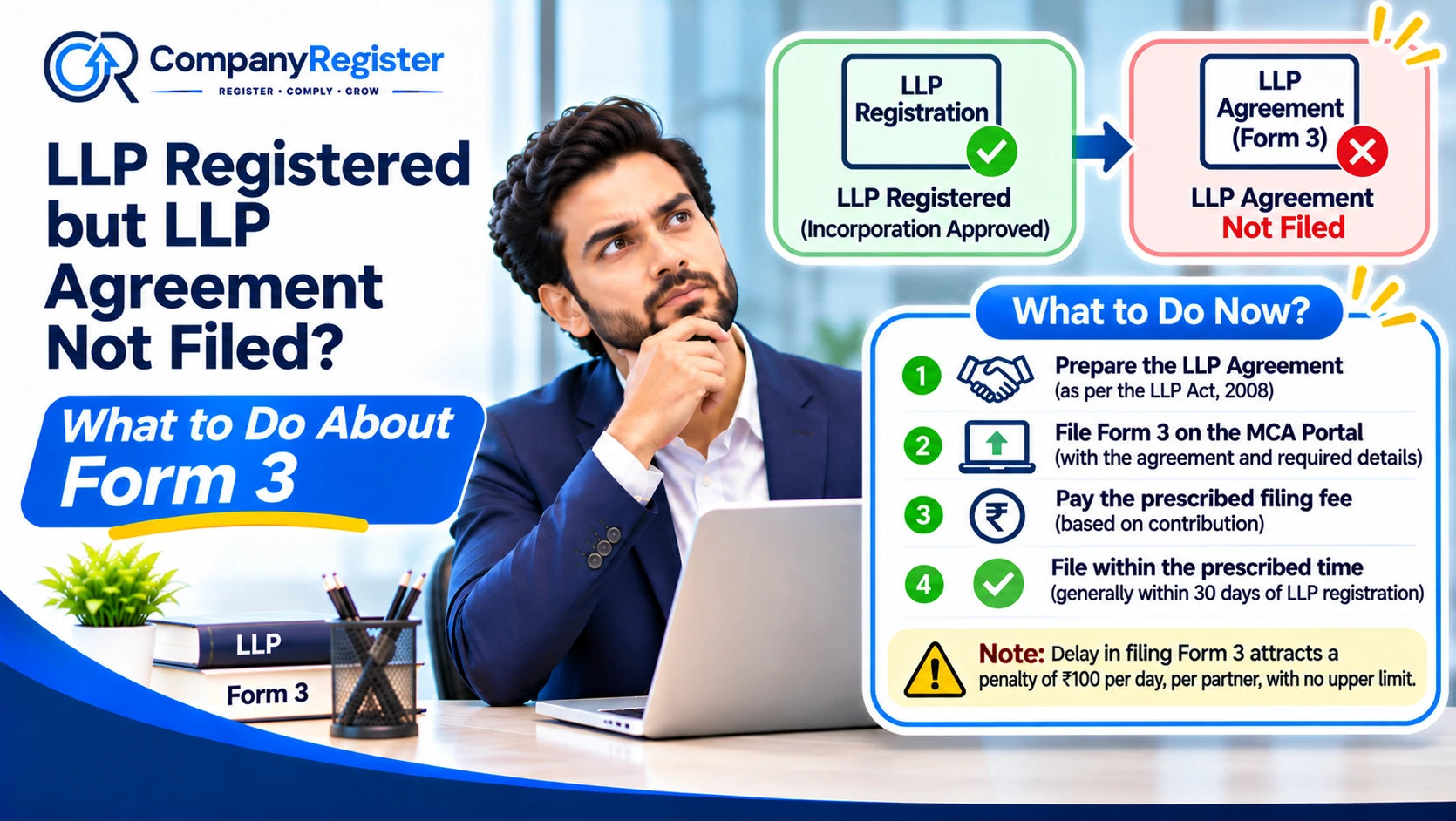
LLP Registered but LLP Agreement Not Filed? What to Do About Form 3
Identify an unfiled LLP agreement, prepare Form 3 on MCA21, separate filing costs from stamp duty and track the submission.
 23 Nov 2026 - Licenses
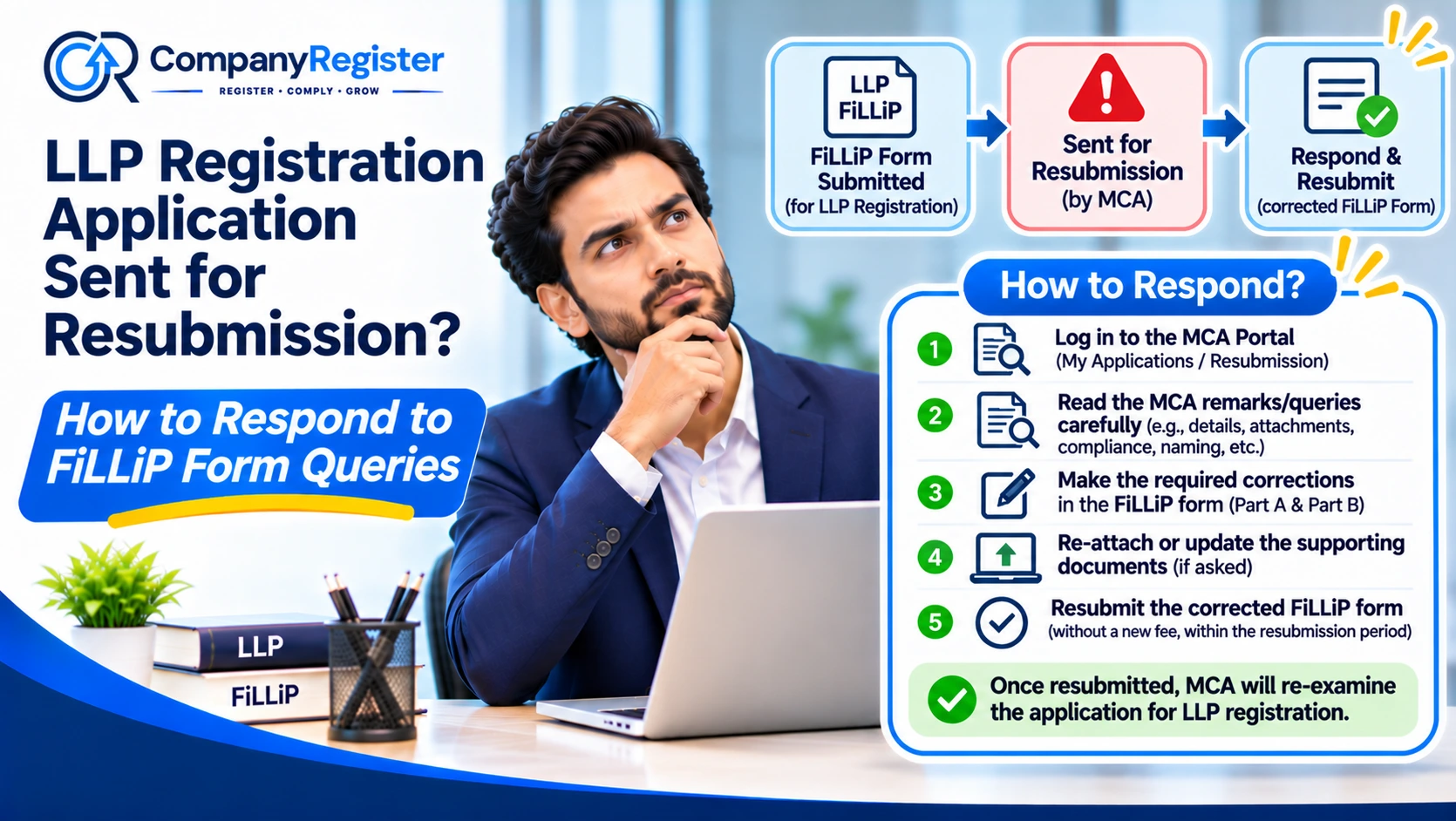
LLP Registration Application Sent for Resubmission? How to Respond to FiLLiP Form Queries
Respond to MCA FiLLiP remarks with a correction plan, relevant documents and portal submission steps. Understand costs, deadlines and next steps.